Rclone 配置 Dropbox 存储 | 详解指南
1. First | 序
此节记录使用 Rclone 配置 Dropbox 存储过程
1.1. OS&APP Version | * 版本
rclone v1.66.0
- os/version: Microsoft Windows 10 IoT Enterprise LTSC 2021 21H2 (64 bit)
- os/kernel: 10.0.19044.5487 (x86_64)
- os/type: windows
- os/arch: amd64
- go/version: go1.22.1
- go/linking: static
- go/tags: cmount
2. Knowledgebase | 知识库
2.1. short-lived tokens & refresh tokens
此篇我们主要了解 short-lived tokens & refresh tokens
-
short-lived tokens
短期访问令牌: 默认将获取此项,有效期为14400秒(4小时)
-
refresh tokens
刷新令牌: 当访问令牌过期时,它允许客户端应用程序(比如Rclone)使用刷新令牌获取新的访问令牌,而无需要求用户再次登录
2.2. token_access_type
如果此参数设置为 Offline,则成功调用 /oauth2/token 后返回的访问令牌有效负载将包含一个短期访问令牌 (access_token) 和一个长期访问令牌 (refresh_token)。只要用户的授权仍然有效,即可使用 refresh_token 请求新的短期访问令牌。如果设置为 Online,则仅返回一个短期访问令牌 (access_token)。如果省略此参数,则默认为 Online。
2.3. Redirect URIs
✅ 什么是 Redirect URI?
在 OAuth 2.0 流程中:
- 用户在浏览器中被引导到 Dropbox 的授权页面。
- 授权成功后,Dropbox 需要把 授权码(code) 返回给你的程序。
- 它是通过“重定向”浏览器到某个地址,并附上授权码实现的——这个地址就是 Redirect URI。
举个例子:
你访问:
https://www.dropbox.com/oauth2/authorize?client_id=abc123&redirect_uri=http://localhost:53682&response_type=code

用户同意授权后,Dropbox 跳转到:
http://localhost:53682/?code=XYZ123
然后你的程序(如 Rclone)监听这个地址,抓住这个 code,用它换取 access_token。
🧪 为什么 Rclone 推荐使用 http://localhost:53682/?
当你用 rclone config 交互式配置 Dropbox 的时候:
- 它会自动开启一个本地的临时 HTTP 服务器(监听
localhost:53682) - 当你授权完,Dropbox 会把授权码传回这个地址
- Rclone 捕获后立刻完成后续 token 获取流程
这就能实现全自动化,不需要你手动复制粘贴 code。
所以 Rclone 要求你 在 Dropbox App 的配置中 添加:
http://localhost:53682/
不然 Dropbox 会拒绝重定向请求(因为它需要验证 Redirect URI 是你授权过的)。
📌 如果你不添加这个 Redirect URI,会发生什么?
Dropbox 授权后会报错类似:
redirect_uri_mismatch- The redirect_uri passed in the request does not match the redirect URI registered for the app.
这时 Rclone 就接收不到 code,整个流程就断了。
✅ 我可以用其他 Redirect URI 吗?
可以,只要它跟你实际用的一致就行。如果你是写网页 app,可能就会用:
https://yourdomain.com/oauth/callback
但对于本地工具(如 Rclone、rclone-browser、桌面客户端),最常见的是:
http://localhost:PORT/
💡 小总结
| 项目 | 解释 |
|---|---|
| Redirect URI | OAuth 授权后 Dropbox 回调的地址 |
| 为什么是 localhost:53682 | Rclone 临时本地 HTTP 服务监听的端口 |
| 如果不匹配会怎样 | 授权失败,code 无法接收 |
| 如何设置 | 在 Dropbox App 控制台添加 http://localhost:53682/ 到 Redirect URIs |
3. Procedure | 步骤
- Create App
- 获取 App key & App secret
- 修改权限
- 添加 Redirect URIs
- 配置Rclone
3.1. Create App
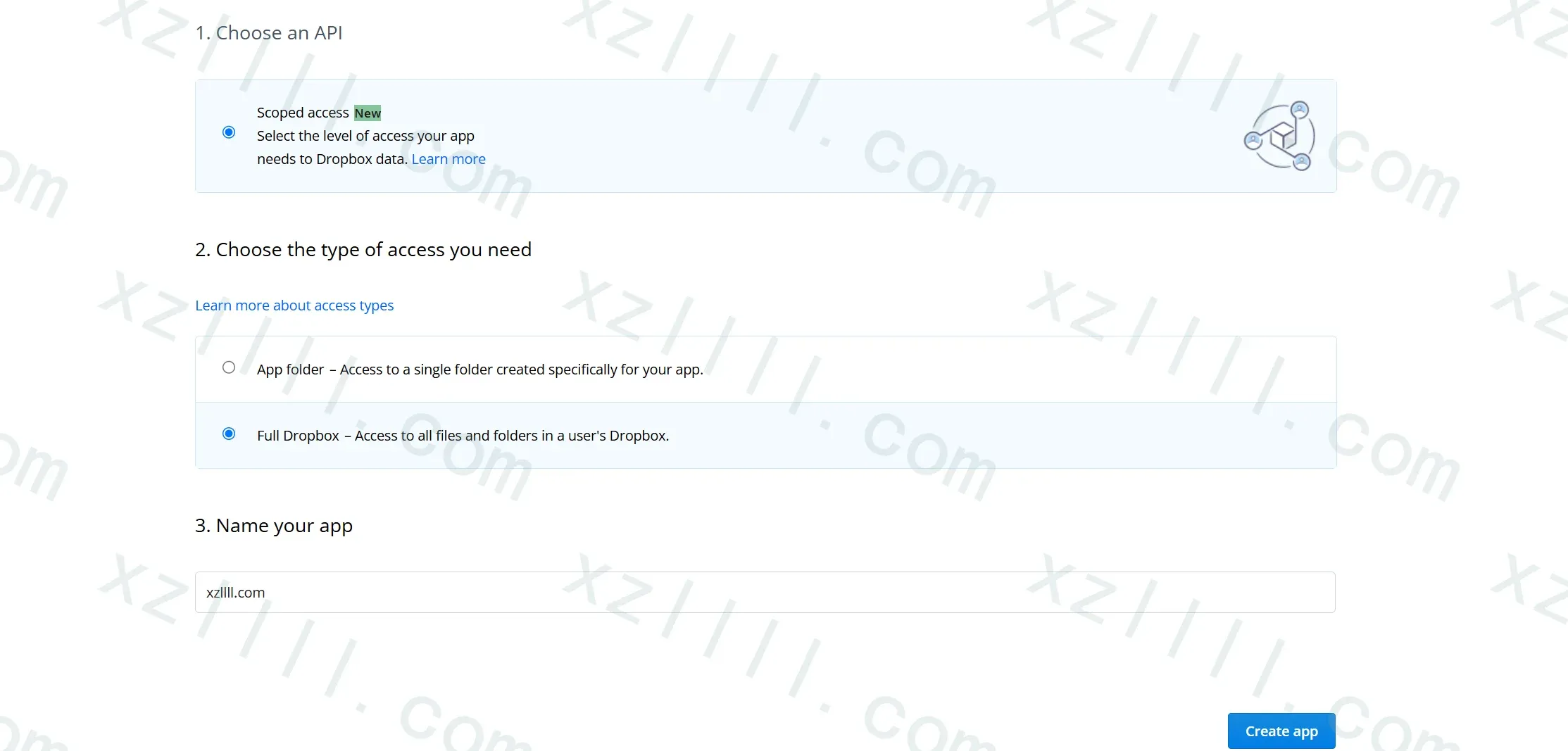
首先我们需要创建一个 App 以便使用自己的 Dropbox App ID


Create App 链接🔗
-
Choose The type of access you need
根据自己需要选择:
- App folder
在用户 Dropbox 的“应用”文件夹中,会创建一个以您的应用命名的专用文件夹。您的应用仅拥有此文件夹的读写权限,用户可以通过将文件移动到此文件夹来向您的应用提供内容。 - Full Dropbox
完全访问用户 Dropbox 中的所有文件和文件夹
- App folder
-
Name your app
注意此项名称具有全局唯一性(假如A用户已经叫张三,你就只能写李四)
3.2. 获取 App key & App secret
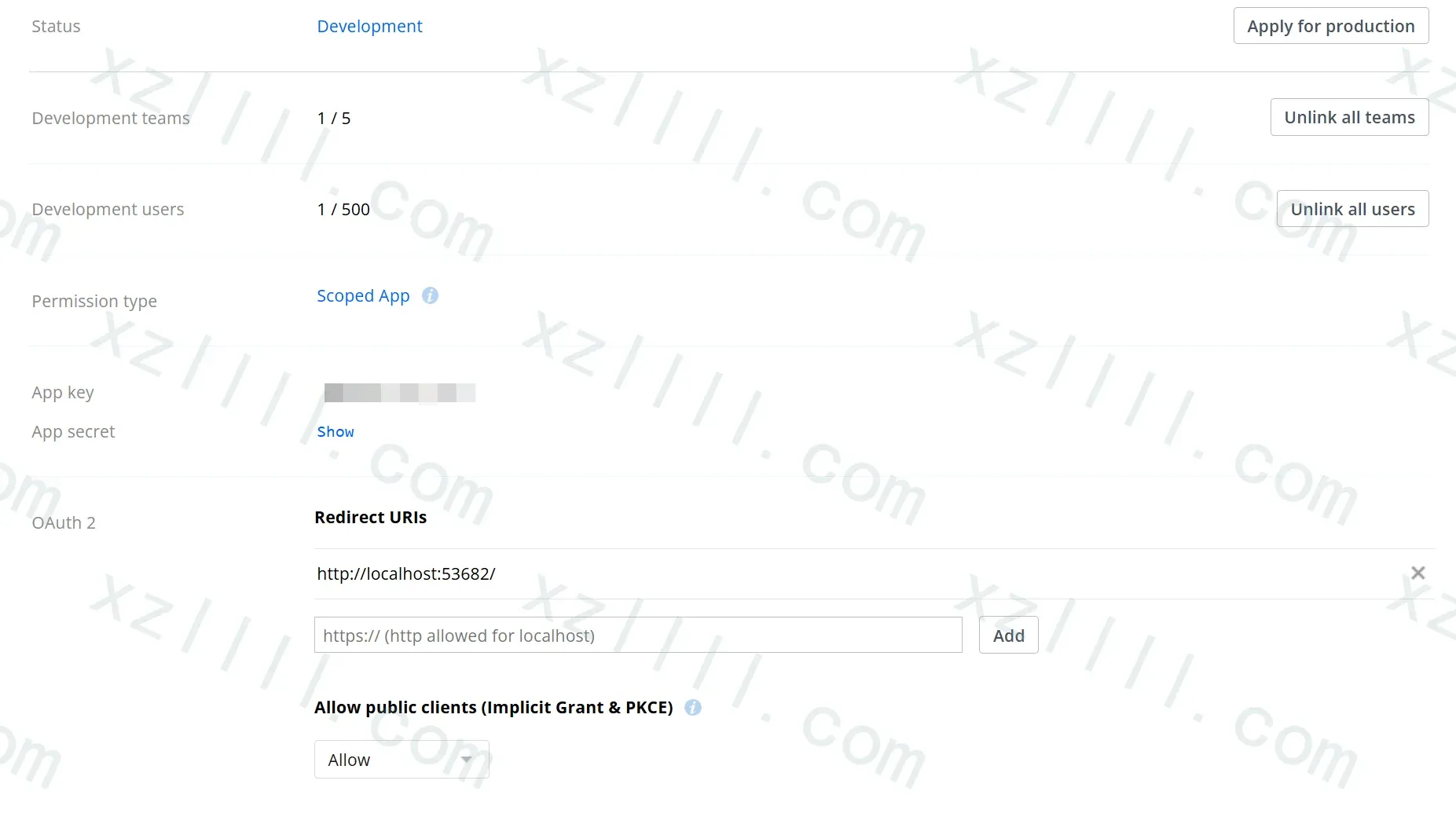
创建APP完毕后我们可以在Setting选项卡获取到显式的App key和默认隐藏的App secret
别忘了点击
Enable Additional Users启用其他用户
3.3. 修改权限
我们需要切换至 Permissions 选项卡修改此 App 能够获取到的用户权限
对于Rclone来说请至少开启如下权限
- account_info.read
- account_info.read
- files.metadata.write
- files.content.write
- files.content.read
- sharing.write
同时以下复选框一并被选中
- The files.metadata.read
- sharing.read
完成更改后请单击提交按钮
3.4. 添加 Redirect URIs
至于什么是 Redirect URIs | 2.3节已详析描述
切换至 Setting 选项卡添加 Redirect URIs 项
值为 http://localhost:53682/
随后点击 Add 按钮
Ex | 示例
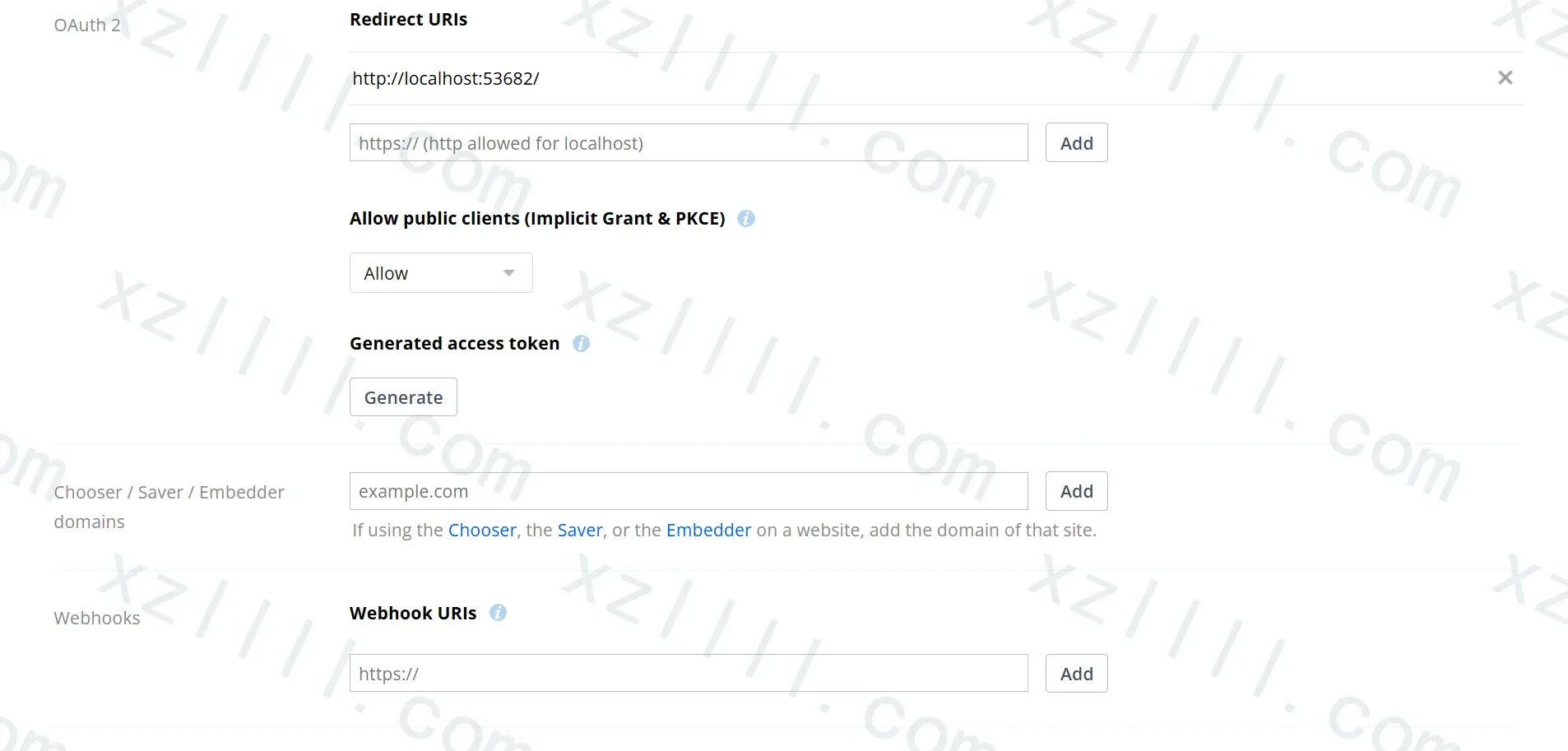
请确保值为
http://localhost:53682/不要少了根部的/
3.5. 配置Rclone
确保我们已经获取到了以下值
- App key
- 对应Rclone中的
client_id
- 对应Rclone中的
- App secret
- 对应Rclone中的
client_secret
- 对应Rclone中的
随后我们使用 rclone config 配置 Dropbox 存储
因为Rclone配置文件具有通用性,所以我们最好使用Windows版Rclone配置存储,随后将配置文件复制到Linux系统即可
-
New remote
输入 n 创建 New remote
e) Edit existing remote n) New remote d) Delete remote r) Rename remote c) Copy remote s) Set configuration password q) Quit config e/n/d/r/c/s/q> n -
为 new remote 命名
Enter name for new remote. name> Dropbox -
选择存储类型
注意不同版本的Rclone,Dropbox序号不一样,请仔细选择
Option Storage. Type of storage to configure. Choose a number from below, or type in your own value. 1 / 1Fichier \ (fichier) 2 / Akamai NetStorage \ (netstorage) 3 / Alias for an existing remote \ (alias) 4 / Amazon S3 Compliant Storage Providers including AWS, Alibaba, ArvanCloud, Ceph, ChinaMobile, Cloudflare, DigitalOcean, Dreamhost, GCS, HuaweiOBS, IBMCOS, IDrive, IONOS, LyveCloud, Leviia, Liara, Linode, Minio, Netease, Petabox, RackCorp, Rclone, Scaleway, SeaweedFS, StackPath, Storj, Synology, TencentCOS, Wasabi, Qiniu and others \ (s3) 5 / Backblaze B2 \ (b2) 6 / Better checksums for other remotes \ (hasher) 7 / Box \ (box) 8 / Cache a remote \ (cache) 9 / Citrix Sharefile \ (sharefile) 10 / Combine several remotes into one \ (combine) 11 / Compress a remote \ (compress) 12 / Dropbox \ (dropbox) 13 / Encrypt/Decrypt a remote \ (crypt) 14 / Enterprise File Fabric \ (filefabric) 15 / FTP \ (ftp) 16 / Google Cloud Storage (this is not Google Drive) \ (google cloud storage) 17 / Google Drive \ (drive) 18 / Google Photos \ (google photos) 19 / HTTP \ (http) 20 / Hadoop distributed file system \ (hdfs) 21 / HiDrive \ (hidrive) 22 / ImageKit.io \ (imagekit) 23 / In memory object storage system. \ (memory) 24 / Internet Archive \ (internetarchive) 25 / Jottacloud \ (jottacloud) 26 / Koofr, Digi Storage and other Koofr-compatible storage providers \ (koofr) 27 / Linkbox \ (linkbox) 28 / Local Disk \ (local) 29 / Mail.ru Cloud \ (mailru) 30 / Mega \ (mega) 31 / Microsoft Azure Blob Storage \ (azureblob) 32 / Microsoft Azure Files \ (azurefiles) 33 / Microsoft OneDrive \ (onedrive) 34 / OpenDrive \ (opendrive) 35 / OpenStack Swift (Rackspace Cloud Files, Blomp Cloud Storage, Memset Memstore, OVH) \ (swift) 36 / Oracle Cloud Infrastructure Object Storage \ (oracleobjectstorage) 37 / Pcloud \ (pcloud) 38 / PikPak \ (pikpak) 39 / Proton Drive \ (protondrive) 40 / Put.io \ (putio) 41 / QingCloud Object Storage \ (qingstor) 42 / Quatrix by Maytech \ (quatrix) 43 / SMB / CIFS \ (smb) 44 / SSH/SFTP \ (sftp) 45 / Sia Decentralized Cloud \ (sia) 46 / Storj Decentralized Cloud Storage \ (storj) 47 / Sugarsync \ (sugarsync) 48 / Transparently chunk/split large files \ (chunker) 49 / Union merges the contents of several upstream fs \ (union) 50 / Uptobox \ (uptobox) 51 / WebDAV \ (webdav) 52 / Yandex Disk \ (yandex) 53 / Zoho \ (zoho) 54 / premiumize.me \ (premiumizeme) 55 / seafile \ (seafile) Storage> 12 -
输入client_id
Option client_id. OAuth Client Id. Leave blank normally. Enter a value. Press Enter to leave empty. client_id> -
输入client_secret
Option client_secret. OAuth Client Secret. Leave blank normally. Enter a value. Press Enter to leave empty. client_secret> -
选择是否需要编辑拓展选项
这里选择否n(默认为n)
Edit advanced config? y) Yes n) No (default) y/n> -
启用web浏览器验证
此项保持默认即可
Use web browser to automatically authenticate rclone with remote?
 * Say Y if the machine running rclone has a web browser you can use
 * Say N if running rclone on a (remote) machine without web browser access
If not sure try Y. If Y failed, try N.

y) Yes (default)
n) No
Rclone自动打开浏览器进入Dropbox认证流程(下一步下一步即可)
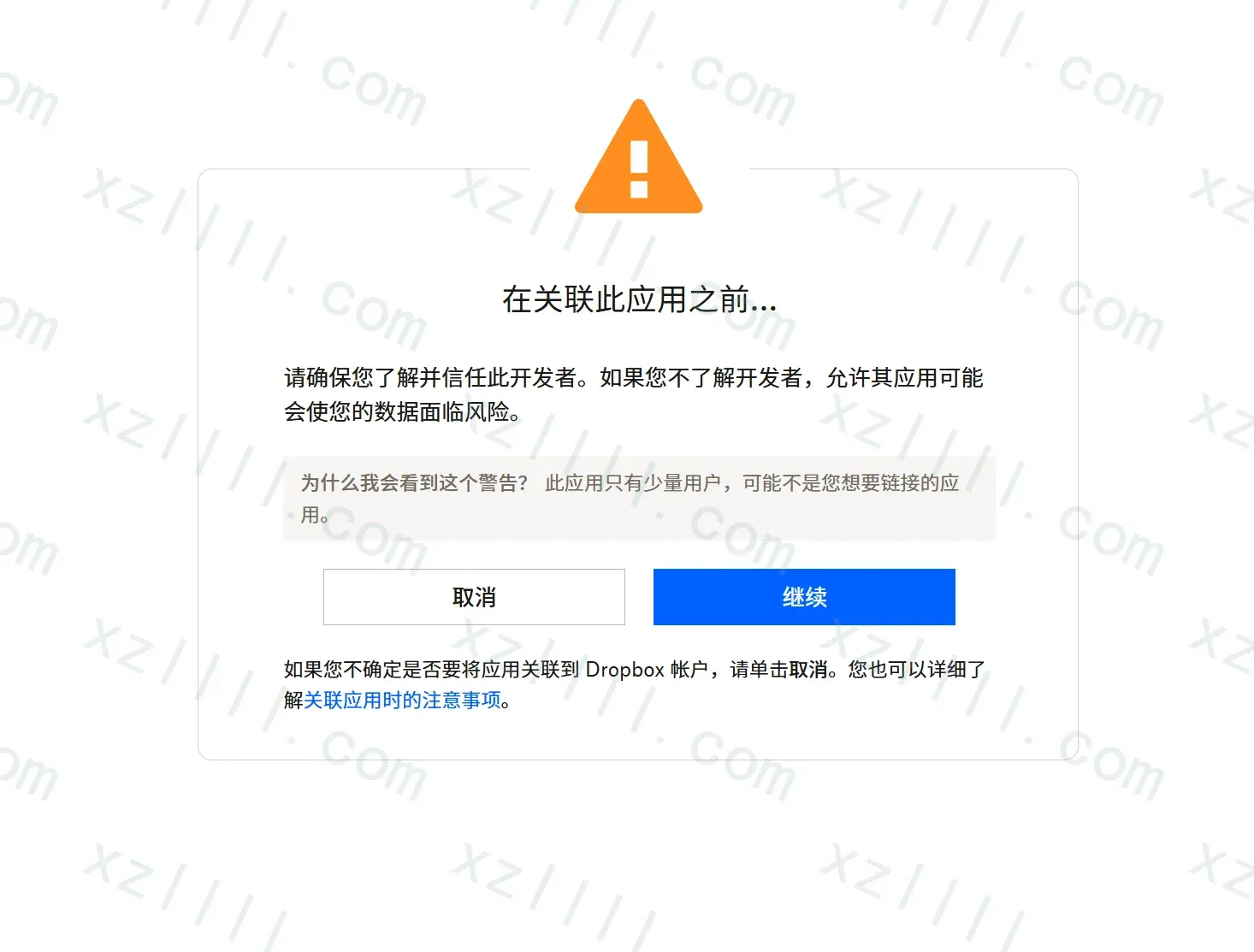
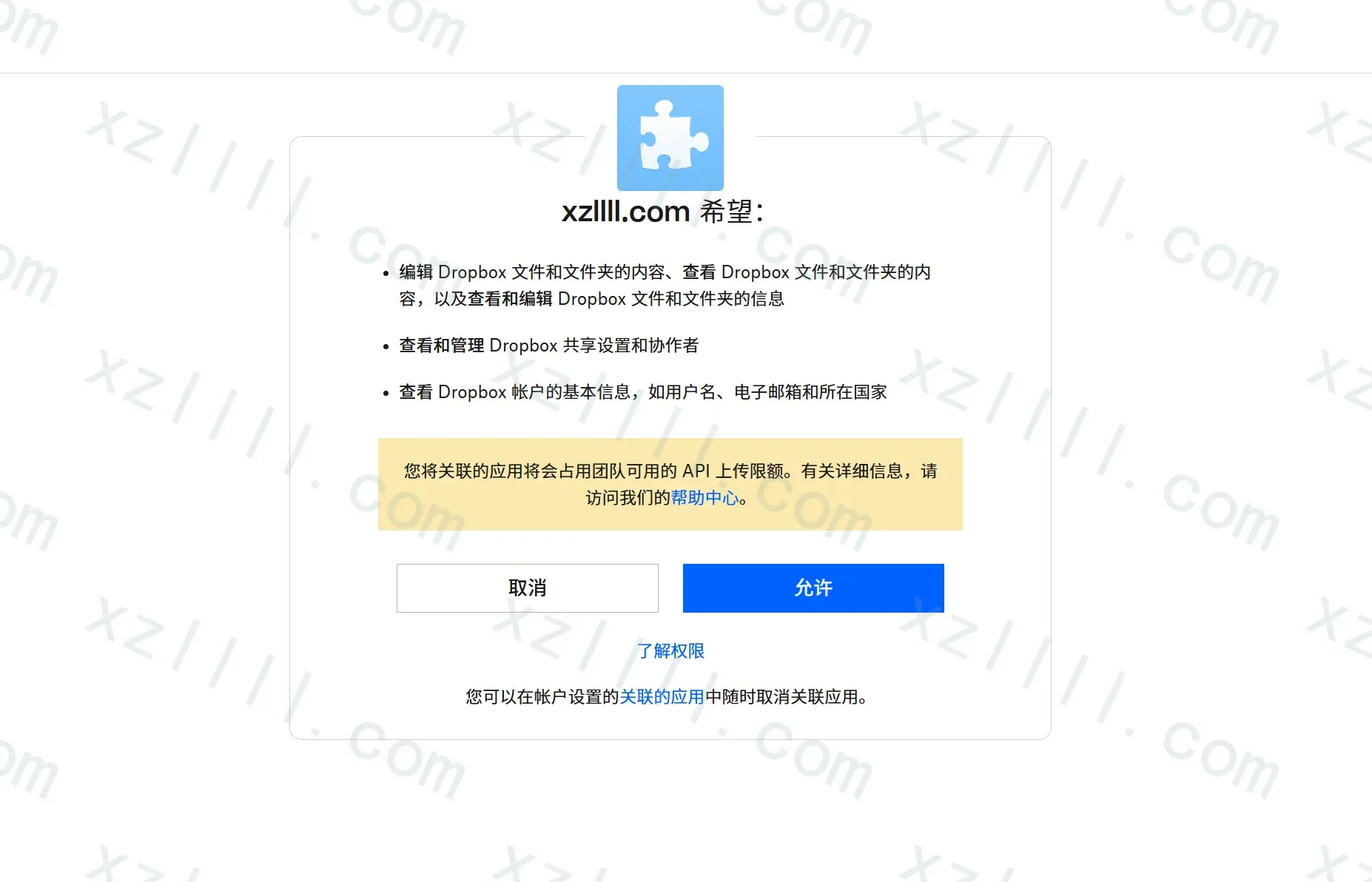
认证链接看起来像这样
https://www.dropbox.com/1/oauth2/authorize?client_id=xxxxxxx&redirect_uri=http://localhost:53682/&response_type=code&scope=files.metadata.write+files.content.write+files.content.read+sharing.write+account_info.read&state=xxxxxxxxxxxx&token_access_type=offline请注意此项
(token_access_type=offline)这表示
rclone将会自动获取refresh_token意味着
rclone将会自动更新short-lived tokens而不用频繁获取 tokens -
查看 rclone.conf
配置完成以后我们可以查看一下 rclone.conf
看起来像这样
[Dropbox]
type = dropbox
client_id =
client_secret =
token = {"access_token":"","token_type":"bearer","refresh_token":"","expiry":""}
4. Verify | 验证
配置完成后我们使用如下命令来验证配置项是否正确
rclone size Dropbox:
回显如下
Total objects: 205
Total size: 291.350 GiB (312835188894 Byte)
Thanks & Copy
Rclone
 Nick Craig-Wood

Dropbox


 API Platform Team